
Most ZPL label templates work fine the first time. The problem shows up later when the same template runs on a different printer model, processes variable-length data from a live feed, or gets scaled to a few thousand labels per shift. What looked solid in the viewer starts producing labels the scanner won’t read, text that gets cut off mid-field, or barcodes that shift position depending on factors the developer never accounted for during build.
The structure of the template is usually where the issue starts. Not the syntax the syntax often checks out. The issue is in the assumptions baked into how the template was built: fixed field lengths based on sample data, positioning logic that doesn’t account for DPI variation, or a command sequence that depends on a specific printer default that isn’t set the same way everywhere.
In 30 seconds: A ZPL label template that holds up in production has four things right: field dimensions sized to real data ranges, not sample data; positioning logic that doesn’t assume a specific DPI; a command sequence that doesn’t rely on unconfirmed printer defaults; and test coverage that includes edge-case values, not just clean examples. The rest of this article explains what each of those means in practice.
The parts of a ZPL template that break first

Understanding where templates fail under real conditions is easier if you start from what each structural element is actually doing and what it’s assuming without telling you.
Field origin and positioning in ZPL is defined through ^FO (Field Origin), which sets the coordinates of each element relative to the label origin. Those coordinates are in dots, not millimeters or inches. That means a field positioned at ^FO50,50 will land in a different physical location on a 203 dpi printer than on a 300 dpi printer, because the dot size is different. Templates built and tested on a single printer model and then deployed to a fleet with mixed resolutions will have elements that shift sometimes by enough to push a barcode partially off the printable area or move a field into an adjacent one.
The fix isn’t complicated, but it requires acknowledging the variable upfront: if your label environment includes printers at different resolutions, your positioning logic needs to account for it, or your template needs to be maintained as separate versions per resolution class.
^FD field data and variable substitution is where things get quietly wrong with real production data. During development, field data tends to be short, clean, and representative of a best-case scenario. A product description gets tested with “Widget Type A” and works fine. In production, that same field receives “Heavy-Duty Polypropylene Composite Panel (UV-Stabilized, Indoor/Outdoor Grade)” and the field either truncates silently, wraps onto the next field, or forces other elements out of position.
ZPL doesn’t throw an error when field data exceeds the allocated space. It clips or wraps based on how the field and font are configured. If you haven’t explicitly set a maximum field length and tested with data that hits that limit, you’ve shipped a template with an untested failure mode.
Font and barcode scaling compounds the positioning problem. ^CF sets the default font; ^A sets the font per field. Barcode commands like ^BC or ^BQ have height and width parameters that scale in dots. A barcode width that works at 203 dpi may not produce a scannable output at 300 dpi because the narrow-to-wide bar ratio shifts. This is one of the gaps between what a viewer shows typically a rendering based on the parameters you’ve given it and what a thermal printer produces under real print density and media conditions.
Building field structure that handles real data
A ZPL template built for production needs field definitions that are designed around what the data will actually look like at the edges, not at the center.
A few things that hold up consistently:
- Set explicit maximum field lengths using ^FB (Field Block) for text fields that will receive variable-length data. ^FB gives you control over field width, maximum number of lines, and text justification and it clips field data in a predictable, configured way rather than letting the printer decide what to do when the data runs long.
- Test every field with your p95 data, not your median data. The median product description in your system may be 30 characters. The ones that fail will be the 5% that are 90 characters. Build your template around those.
- Define font sizes using absolute values rather than inheriting from the default font. When a template relies on ^CF being set to a specific default and that default isn’t configured the same way on every printer in the fleet, the rendering changes without any change to the template file.
There’s a specific situation worth calling out separately: if your field data comes from a database or ERP feed and includes special characters line breaks, non-standard ASCII, or characters that get encoded differently depending on the system sending the data those characters will not behave the same way they do in your test environment. ^CI (Change International Font) controls character encoding in ZPL. If it’s not explicitly set in your template, the printer’s default encoding applies, and that default varies. Templates that process international product names, addresses, or lot codes need explicit encoding configuration.
Command sequence and printer defaults
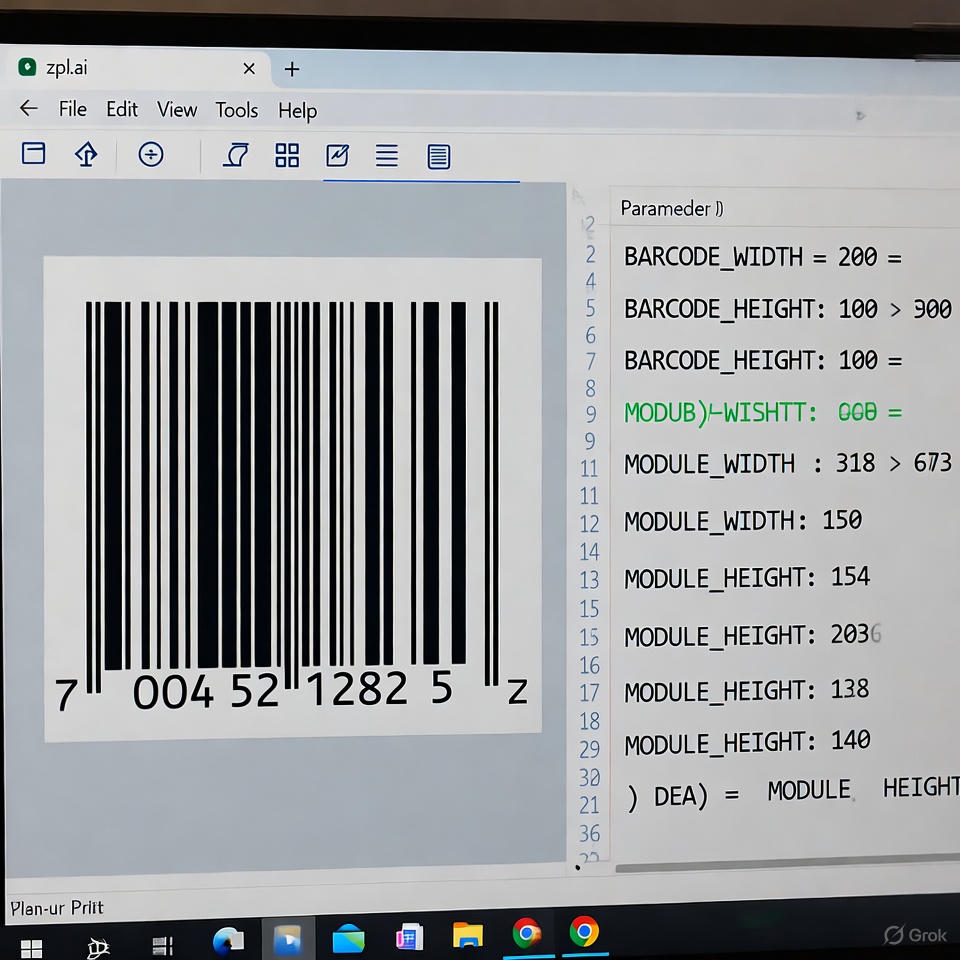
A ZPL label template is not just the fields and the data it’s everything the printer needs to know to produce the label correctly, including settings that are easy to assume are already configured correctly on the printer.
^PW sets print width. ^LL sets label length. If either of these is missing from the template, the printer uses whatever is stored in its active configuration and that configuration may be wrong, or it may have been changed since the last maintenance cycle. Templates that don’t declare their own dimensions explicitly are dependent on printer state that cannot be guaranteed.
The same applies to darkness (~SD), print speed (^PR), and media type settings. Each of these affects print quality in ways that a viewer cannot replicate. A template tested at a darkness level of 20 on a well-calibrated printer in a controlled environment will not necessarily produce the same output on a printer that’s been running high-volume jobs and has a worn printhead, or on a printer in a warehouse where ambient temperature affects the thermal media differently.
ZPL label templates workflow involves more than getting the syntax right in isolation. The template needs to carry its own configuration assumptions, not rely on the environment being consistent because in a multi-printer, multi-shift operation, the environment is rarely consistent.
This doesn’t mean embedding a full printer configuration in every template. It means being explicit about the parameters your template depends on, and knowing which ones you’re choosing to leave to the printer default and why.
Before you call the template done
A ZPL template is ready for production when it has been tested against the actual range of conditions it will encounter, not just the clean version of those conditions.
That means: test with field data that represents the full length distribution of your real data, including the longest values in your system. Test on the actual printer models and firmware versions in your production environment. Test with the media stock that will be used in production label dimensions, gap detection mode, and thermal sensitivity all vary by stock and affect output. Test at the DPI settings of every printer type in your fleet.
If a template produces correct output in a viewer and has never been printed on hardware under real conditions, it hasn’t been tested. It’s been previewed. Before deploying any template, it’s worth running through a structured validation process the kind covered in detail in ZPL validation: a practical pre-print checklist to catch errors before shipping.
ZPL template builder tools that include AI-assisted syntax checking can catch a category of structural issues before the template reaches the printer misconfigured field blocks, missing parameters, commands that conflict with each other. That catches the layer of errors that are visible in the code. The layer that isn’t visible how the template behaves under variable data at scale, on mixed hardware, under real print conditions still requires physical testing. Both layers need to be covered.
The specific thing to verify before deploying any template to production: run it with the ten longest values in your actual data set for each variable field, on the lowest-resolution printer in your fleet, with media calibration set to whatever the default configuration is on that printer. If it holds up under those conditions, it will hold up in most of what production throws at it.